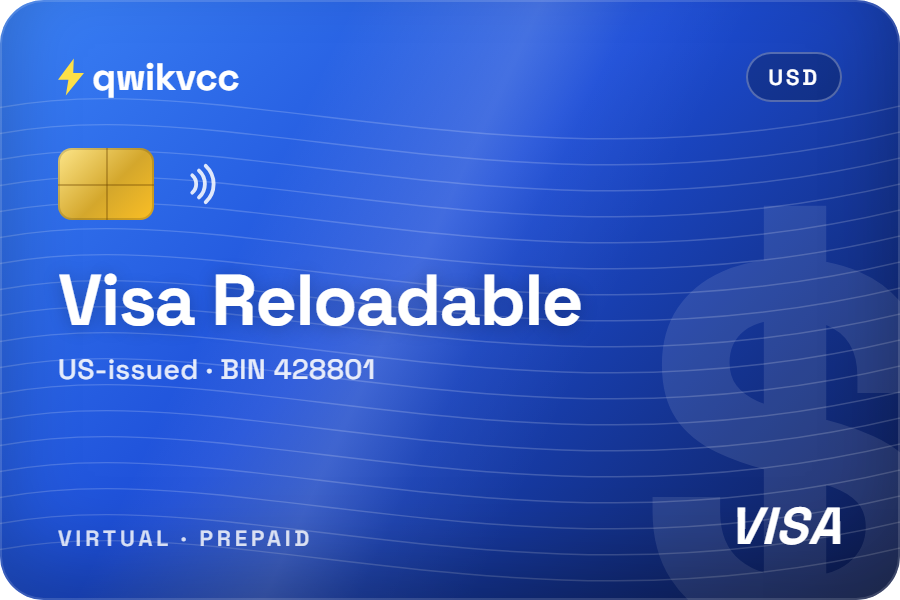
Virtual Visa Reloadable
Set up for subscriptions and ad accounts. A good default for a steady monthly ad budget.
$200 one-time price
View card
Talk to us
Questions about a card or an order? Pick how you'd like to reach us.



Pay for your Facebook and Instagram ads with a prepaid, reloadable US Visa or Mastercard from Qwikvcc. Buy it with crypto, see the card details in your dashboard straight away, and keep your ad budget on a card of its own.
Qwikvcc is not affiliated with Meta. Meta decides which payment methods it accepts for each ad account.
Yes: Qwikvcc customers pay for Meta ads with these cards. Meta still decides for each ad account. Its list of accepted payment methods names credit cards and co-branded debit cards from Visa and Mastercard, the options depend on your ad account's country and currency, and prepaid cards aren't named. So add the card and run a small first payment before you move your full budget. Meta's accepted payment methods
All of them are US-issued, reloadable prepaid virtual cards in USD with 3D Secure. Tell us what matters most and we'll point you to one.
Set up for subscriptions and ad accounts. A good default for a steady monthly ad budget.
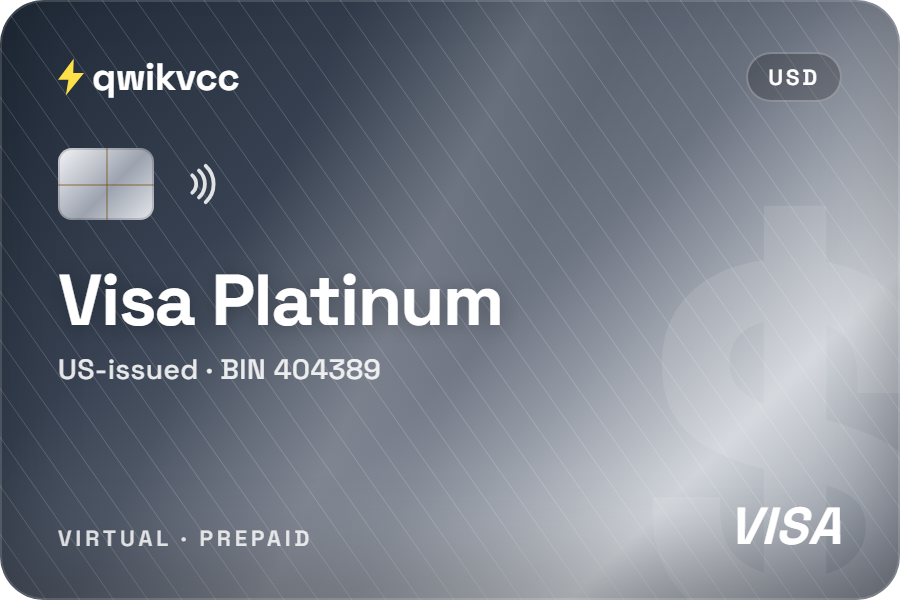
For larger purchases and business spending, when your campaigns run bigger budgets.
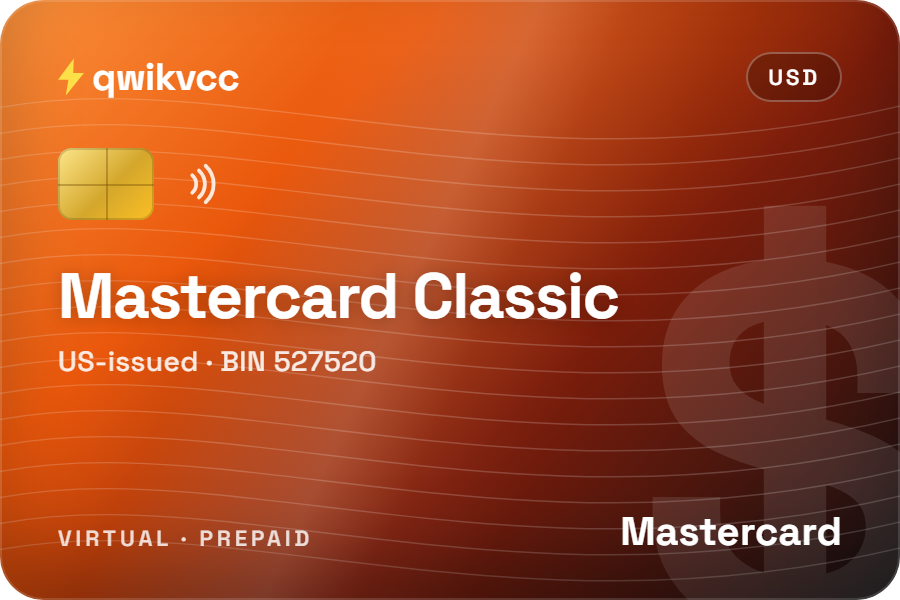
The lowest card price, and a Mastercard for when Visa isn't the network you want.
Want to know a card's starting balance, reload fees or limits? Ask Qwikvcc support before you buy, as they depend on the card.
Meta doesn't charge once a month. On automatic payments it charges each time your spend reaches the billing threshold, then again on your monthly bill date for anything left. Move the sliders to see how that plays out over 30 days.
Keep at least $50 on the card at all times, so every threshold charge goes through.
Simplified example: real spend varies day to day, and Meta may also place a small temporary hold to check a new card. Sources: when you'll pay, adjust your threshold, manual payments.
Decide these when you create the ad account. Changing them later means a new ad account.
Only an admin of the ad account can add or change payment methods.
Pick what you're seeing. Each answer follows Meta's own guidance and links to it.
A prepaid card isn't the right choice for everyone. Here's how the options compare for Meta ads.
| Qwikvcc prepaid card | Credit card | PayPal | |
|---|---|---|---|
| Named on Meta's accepted list | Not named: Meta decides when you add it | Yes | Yes, automatic billing only, in PayPal's currencies |
| Most Meta can charge | Only what's on the card | Up to your credit limit | Whatever your PayPal funding source allows |
| Needs a bank or credit check | No | Yes | A linked bank account or card |
| Pay with crypto | Yes: fund your Qwikvcc balance | No | No |
| Separate card per client or project | Easy: one card each | Depends on your bank | One account |
| Monthly fee | None | Varies by card | None |
| Watch out for | Reloading before each charge, possible declines | Overspending, interest | Currency conversion fees |
Add funds to your Qwikvcc balance with crypto, then buy the card from your balance. Some coins add a small fixed network fee on top, shown before you pay. The card details appear in your dashboard as soon as you buy, never by email.
Full pricingRead Meta's account integrity rules and the enforcement and review process.
Not sure a card fits your ad account? Ask before you buy.
Contact supportMeta's list of accepted payment methods names credit cards and co-branded debit cards, and it varies by the country and currency of your ad account. Prepaid cards aren't named, so Meta decides for each card when you add it. Qwikvcc customers pay for Meta ads with these cards; add yours and run a small payment first.
Meta doesn't take crypto directly. With Qwikvcc you add funds to your balance with a coin such as USDT or Bitcoin, buy a virtual card from that balance, and add the card to Meta as a payment method.
On automatic payments, Meta charges when your spend reaches the billing threshold and again on your monthly bill date for anything not yet paid. A charge after your ads stop is usually that remaining balance.
It's the amount of spend at which Meta charges your payment method. It starts low and Meta raises it after successful payments. If your card has a limit per payment, you can lower the threshold in your payment settings.
Qwikvcc cards are in USD, so a USD ad account avoids currency conversion on each charge. Pick carefully: changing the currency later creates a new ad account.
Meta limits how many ad accounts one payment method can be used on. If you manage ads for clients, a separate card per client keeps budgets and records apart.
No. A restriction for a policy reason isn't a payment problem. Request a review through Meta's Business Support Home. If the account was restricted for an unpaid balance, pay the balance first.
All Qwikvcc cards are reloadable. Contact support for the current top-up methods and fees for your card.
In My cards in your Qwikvcc dashboard, straight after you buy. Meta asks for the card number, expiry date and security code (CVV).
Pick a Qwikvcc card, pay with crypto and add it to Ads Manager in a few minutes. Start with a small payment to check Meta accepts it.
Meta, Facebook and Instagram are trademarks of Meta Platforms, Inc. Qwikvcc is not affiliated with, endorsed by or sponsored by Meta. Meta facts on this page last checked against Meta's help pages on 15 October 2026.